Welcome to a new anime character animation lesson! Today, we'll learn how to animate a complete character from one pose to another using Toon Boom Harmony on your computer. This lesson is for anyone who wants to improve their animation skills and understand how to seamlessly transition between movements. If you have a pre-drawn character, make sure you have it ready, as we'll be using it directly in this lesson. Ready? Let's begin!
The first step is how to move a character between two positions.
First, we take the character from the library and place it on the timeline. Since the character is drawn from three angles (front, side, and back), we'll select only two and delete the third, allowing us to easily move the character between the two positions. In this lesson, I chose to switch from the back to the front position.
In my store here you will find everything that helps you with bone movement
The library I'm talking about here is the one in the program, through which I save my anime characters, so that I can use them when moving, instead of drawing them again, and this is something I mentioned to you in previous lessons.
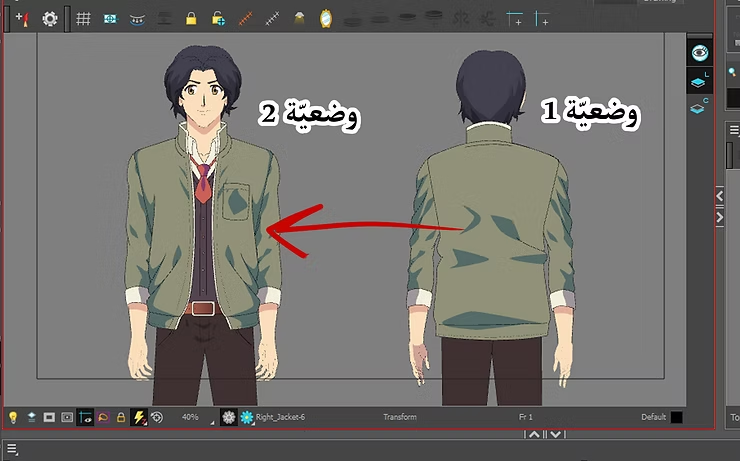
The second step is character preparation: “Defining the two positions, movement A and movement B.“
We now need to divide the frames so that we can move the anime character smoothly:
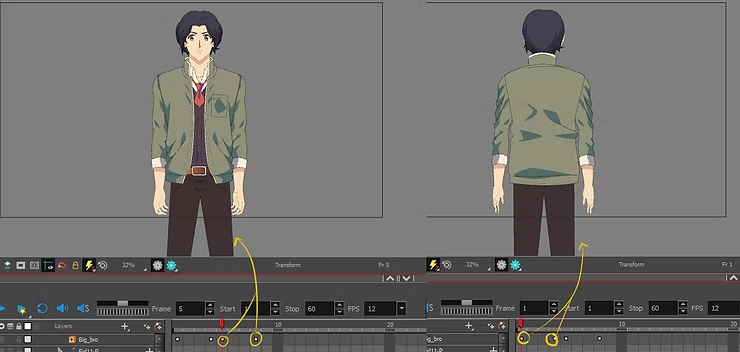
- We put the first position (BackFrom frame 1 to frame 4.
- We put the second position (FrontFrom frame 5 to frame 8.
- The gap between the two positions will be between frame 4 and frame 5.
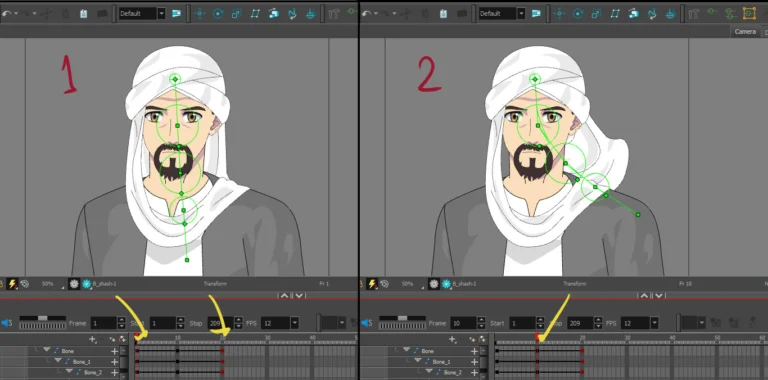
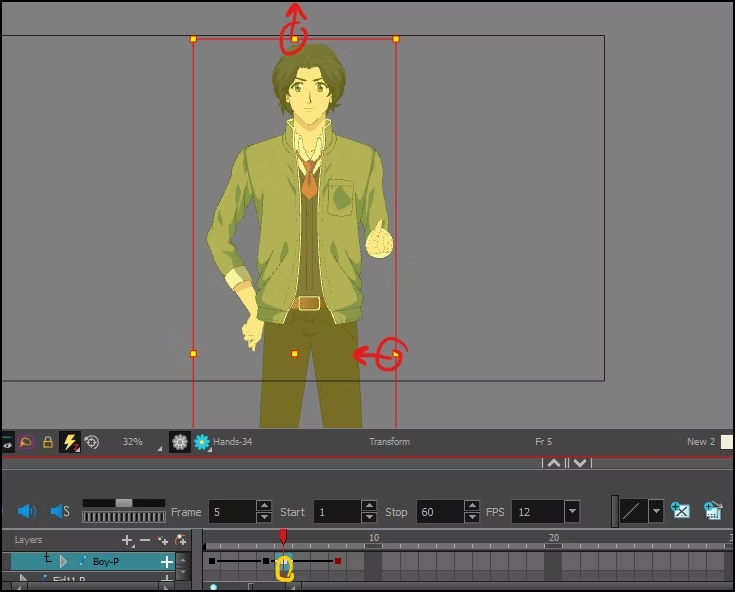
I have indicated to you in the picture, at the yellow arrows, the location of the “keyframe”, so please look closely at the picture. From the left we see the first keyframe, followed by a space, then the keyframe itself. The same thing happens in the last two keyframes.
The third step is to add a preparatory movement (“Anticipation”) before the sudden change of position.
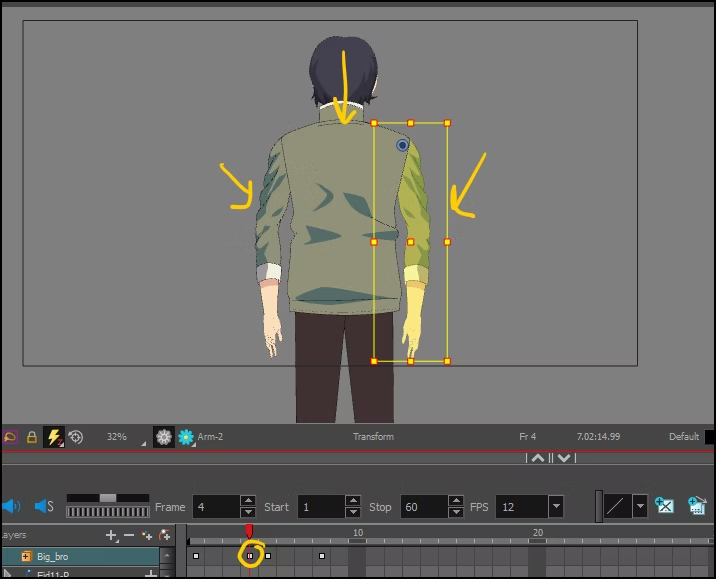
We move on to Frame 4 We then perform some simple adjustments to make the transition smoother:
- We press the keyboard Letter B (Make sure the keyboard is set to English).
- We select the entire arm (it will turn yellow), which means it is ready to be moved.
- We move the arm outwards slightly.
- We move the elbow inwards.
- We move the head to the right or in any direction that suits the scene.
- We move the upper part of the body in the same direction to add dynamism to the movement.
Step four: Use the “Squash & Stretch” technique to make the movement more flexible.
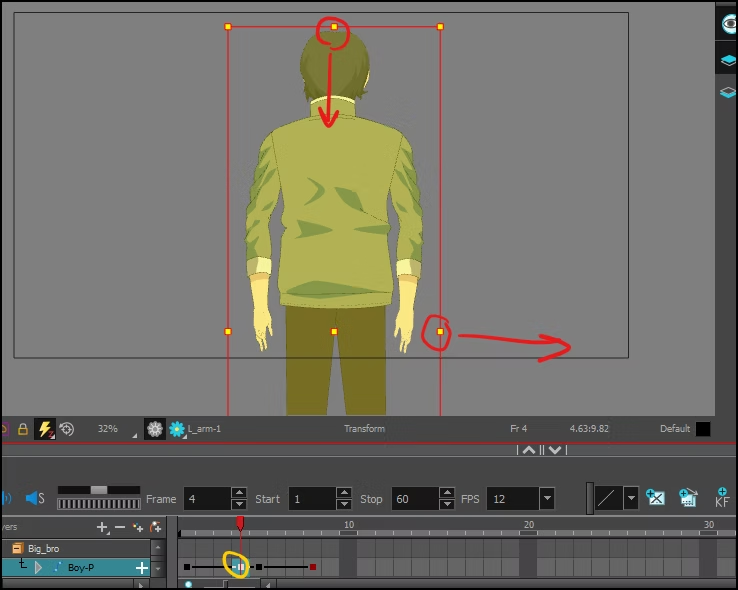
- We stay on the same timeframe and determine using the Peg full body.
- We press the body downwards gently.
- We stretch the body outwards slightly to make the movement more dynamic.
Please be careful not to over-press the body so that the body does not look crushed.
Step five: Switch to frame 5 and adjust the position.
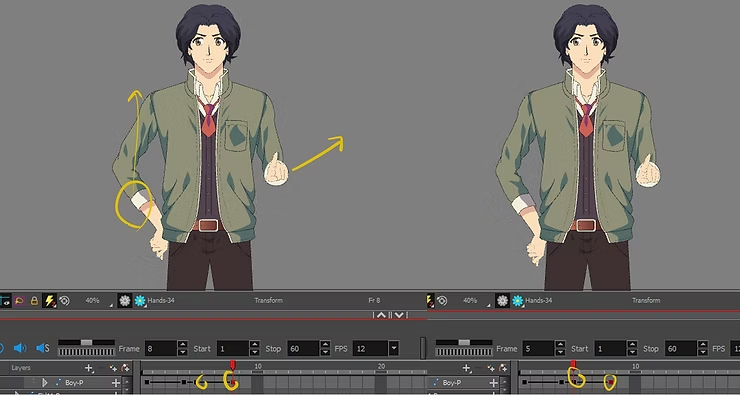
- We locate the right arm and raise it slightly.
- We move the left arm outwards.
- We select the head and move it in the same direction as frame 4 to maintain smoothness.
- We move the upper part of the body towards the right.
Step six: Reuse “Squash & Stretch” in the other direction
- We define the entire Peg body.
- We pull the body upwards slightly.
- We gently press the body inwards to create a sense of natural movement.
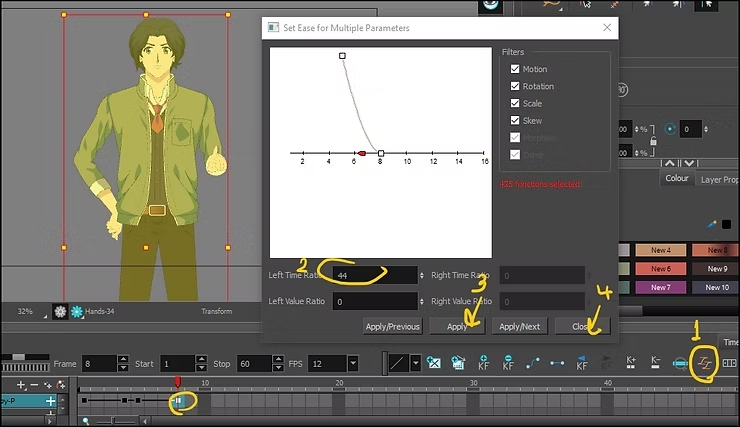
Step seven: Adjusting the motion acceleration “Ease In & Ease Out”
- We move on to the "Ease" acceleration tool located in the Timeline menu.
- We can adjust these values via Timeline when we select the keyframe and go to Function Editor.
- اNow we go to the Graph Editor (Function Editor) options: This tool displays motion curves where we can manually adjust the gradient between frames by dragging control points on the curve.
- We adjust the motion curve so that it is not linear but curved.
This is how we will get accelerated movement, from fast to slow, or vice versa, and this will give professionalism while moving the anime or cartoon character.
How to animate anime hair using animation bones effortlessly
And that concludes today's lesson! Now you have a clear understanding of how to smoothly move a cartoon or even anime character between two poses using techniques like Anticipation, Squash & Stretch, and Ease In & Ease Out. Don't forget that daily practice is key to mastery, and that's the secret to my success, so try these techniques on your own characters and share your progress with others!
Final video
Before I conclude, I would like to say that this method can be combined with traditional “frame-by-frame” animation when animating a cartoon character if you want to save time. And now, I bid you farewell.