Welcome everyone to our explanation today, in which we will learn how to easily convert a 3D train into an anime drawing without the need for hand drawing or having prior experience in drawing vehicles or fine details.
This method relies on using a ready-made three-dimensional model or structure, and it is a very successful method in saving time and effort while preparing anime backgrounds. Instead of drawing from scratch, you can bring a model of the train and turn it into an anime drawing in the perspective you want and with high accuracy that matches the style of your manga and anime work. So let's start step by step.
My Patreon account where you can find a detailed screenshot of the animation
First step
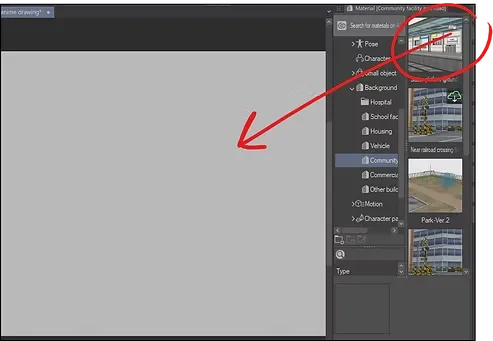
The first thing we will do is open Clip Studio Paint program Which we usually use to prepare anime backgrounds and high-quality anime drawings, then on the blank page inside the program, we go directly to the right-hand menu which contains many diverse 3D models provided by the program, such as houses, vehicles, and small elements.
From there, we will look for a 3D model of the train, and you can write the word Train Use the search box to easily find it. Once found, insert it directly into the page so it appears in the workspace.
Step two
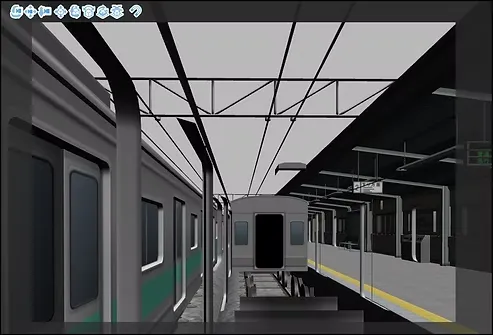
Here we see the shape of the train within the anime drawing project we are working on, and now we start moving the model in the direction we want using the first three options on the left side, which help us rotate the model and change its angle within the scene easily.
Adjust the angle to see the train from the front, side, or even at an angle, depending on the needs of the anime drawing scene you are working on. I personally chose this position or angle, which suits the scene of the train as it moves in the background within the shot.
Step three
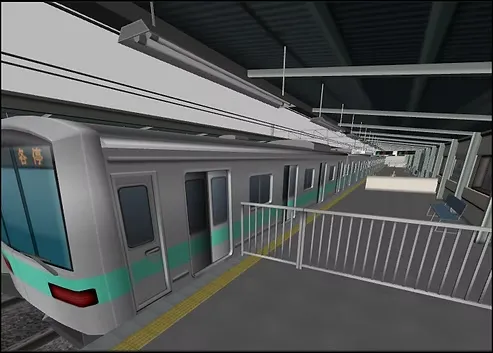
After determining the appropriate angle, we change the lighting and how close the camera is to the object, which is a very important step when creating anime backgrounds and realistic anime drawings.
Step four
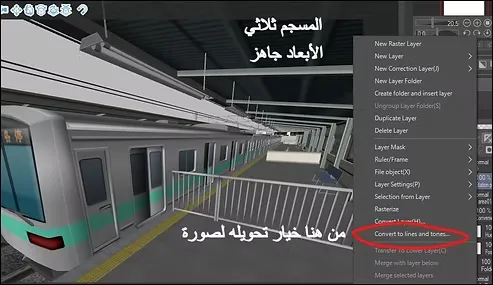
Now we right-click on the train model and a set of important options will appear to control the model and convert it to ink.
We select the option:
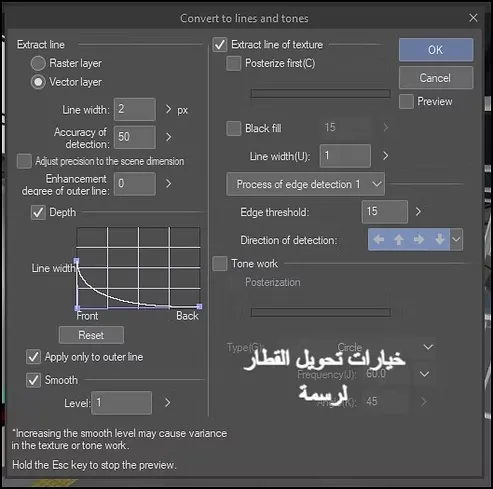
Convert to lines and tones
This option will convert the 3D train into a ready-made anime drawing in seconds without you having to draw, while preserving all the details.
Step five
The conversion settings will appear, which you can either leave as is, or modify the settings for line sharpness and shading density in a way that suits your anime drawing style.
A closer look
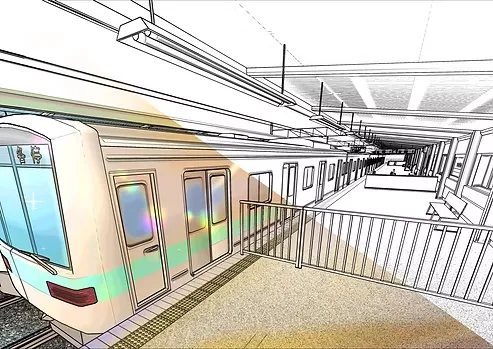
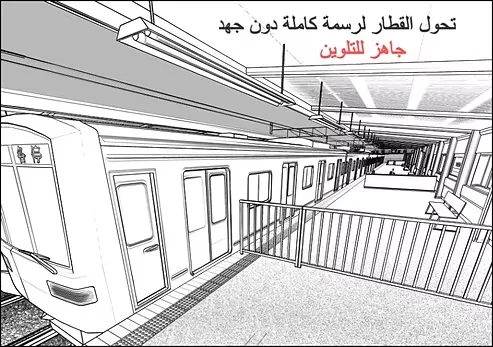
And here is the anime train transformed into a beautiful and professional drawing in just a few minutes, without any trouble or wasting a lot of time drawing the details. .
Step six
Now we go to the top menu and select the following options:
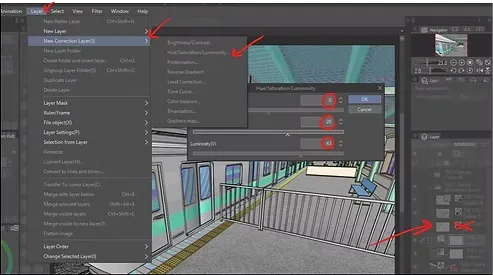
Layer > New correction layer > Hue /Saturation /Luminosity
This step is important because we will keep the train's colors as they are, without needing to recolor it. This option gives us the freedom to easily change the color and its shades according to the scene, which saves a lot of time when preparing an anime drawing at any time.
If you want to color, you can do so by removing the bottom layer, adding a new layer, and starting to color.
color layer
Here we see the color layer after temporarily hiding the ink layer to see the color consistency with the lines and to see if it needs adjustment or adding simple touches before we complete the work.
Final result
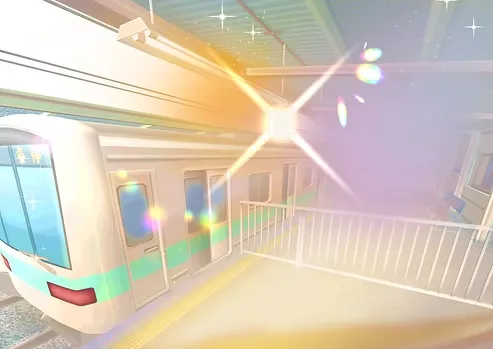
After ensuring the colors are consistent, we redefine the ink layer above the color layer, adding a little purple to reduce the intensity of the color. We also add touches of light blue, as is common in anime backgrounds.
And here is the drawing of the train, ready in front of us.
Master the art of shading and drawing anime backgrounds in an easy way
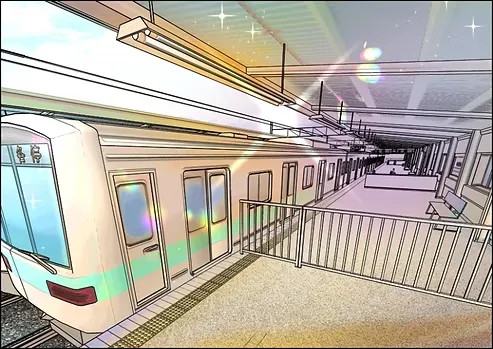
This is today’s lesson about how to easily and professionally convert a 3D train into an anime drawing without any hassle. It’s a method I’ve been using for a while, and it has saved me both effort and time. Don’t forget that this method is also effective on mobile devices like Android and Apple.
Thank you, and I will see you soon, God willing.