As anime artists, we all know that shading in webtoons is extremely important. The reason is that shading adds beauty to the drawings, even if your drawings are modest or simple. Once you add shading, they will improve significantly. This is what prompted me to prepare today's lesson, in which we will learn how to add shading to webtoons using a mask to ensure that the shading appears within the boundaries of the drawing.
In my store here you will find everything that helps you with bone movement
Create a layer for shading the webtoon and characters.
We are opening our project in Clip Studio Paint We'll create a new layer on top of the base color layer. Name the layer clearly (Shadow Layer) so you can easily identify it later when working on multiple web pages.
Choosing the right color for shading
Choose a color that complements the lighting in the scene, ideally slightly darker than the base color of the area you want to shade. You can select the color from the Color Wheel or use the Eyedropper Tool to select a color from the drawing and then adjust its shade to be darker.
Applying a mask: Apply a mask to the new shading layer. The mask helps ensure that the shading will only appear within the boundaries of the drawing and not extend beyond them.
Applying the mask to the shading layer
- Go to the new layer.
- Click on the Add Layer Mask option from the [Layer] → [Layer Mask] menu.
Using the Brush Tool > Soft or Hard Brush option, you can fine-tune the mask to add shadows or remove excess areas. Adjust the brush size from the top bar to ensure precise shading of small details.
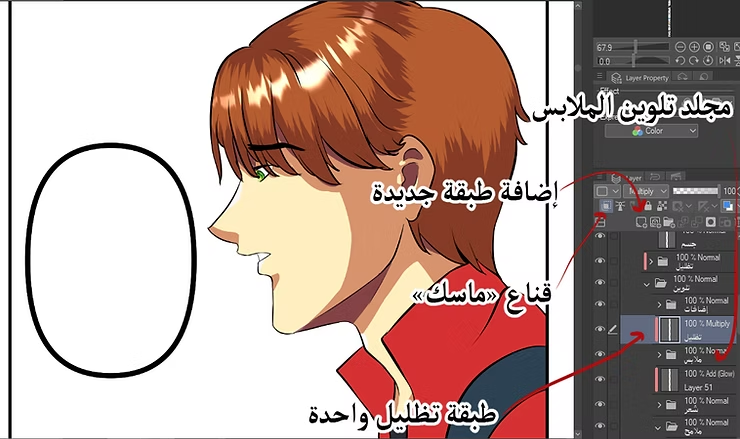
Create a darker shading layer
To add more depth, add a new layer on top of the first shading layer. This layer will be used to shade areas that need a darker shade, such as the inside folds of clothing or heavily shadowed areas.
Choose a shade slightly darker than the initial shading color. Change the layer setting to Multiply from the Layers menu; this effect transforms the color into a shade that blends seamlessly with all the colors in the artwork, creating a natural result when shading the webtoon.
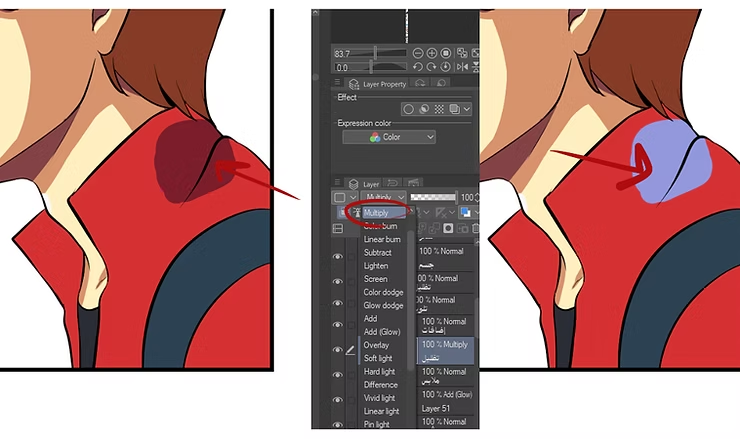
Use the pen tool to draw shading
From the toolbar, select Pen Tool > G-Pen or Mapping Pen. Adjust the pen size according to the desired detail; smaller sizes are ideal for fine details, while larger sizes are suitable for wider areas. This tool gives you complete control over shading and makes shadow lines clear and neat.
Draw the shaded areas clearly
Begin by drawing lines that define the shadow areas on the clothing or body, and mark the locations of folds, wrinkles, and natural shadows caused by lighting. Don't rush this step; the more precise the outline, the more professional your webtoon shading will look.
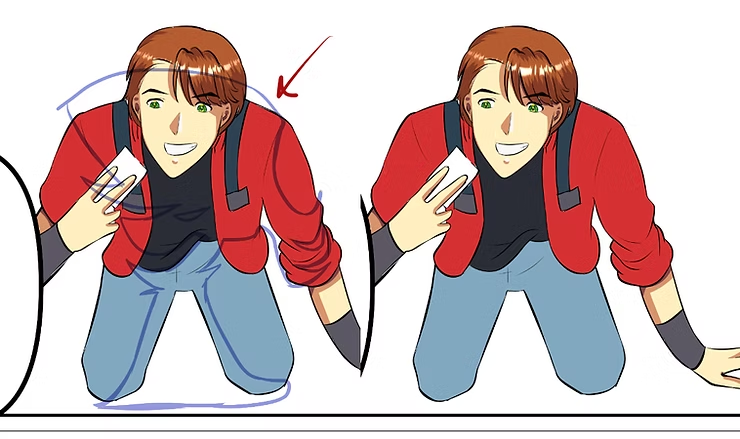
Use the selection tool to define shadow areas.
After drawing the lines, use the Selection Tool > Lasso Tool to select the areas you need to shade clearly within the scene or panel. This method helps you control the shadow fill without going outside the selected areas.
Fill areas with color
After identifying the areas, they chose Fill Tool > Refer Other Layers To fill the selected areas with the color you have chosen for shading easily, without the color bleeding outside the lines.
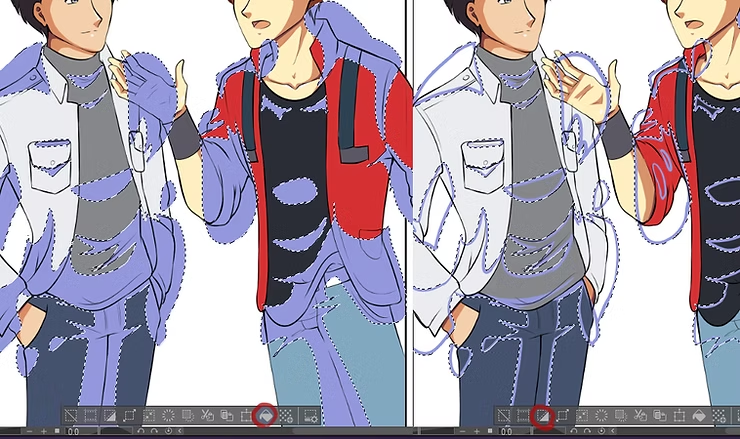
Adding fine details
Use Pen Tool Again, add fine details like thin lines or dots within the shadows. These small touches make the shading look more realistic in the webtoon drawing.
Use the eraser to add spaces
Choose Eraser Tool > Soft Eraser from the toolbar to remove small parts of shadows to create vacuum effects within the shadow. This technique makes the shading look natural and not flat.
How to draw manga scenes and add accessories to characters
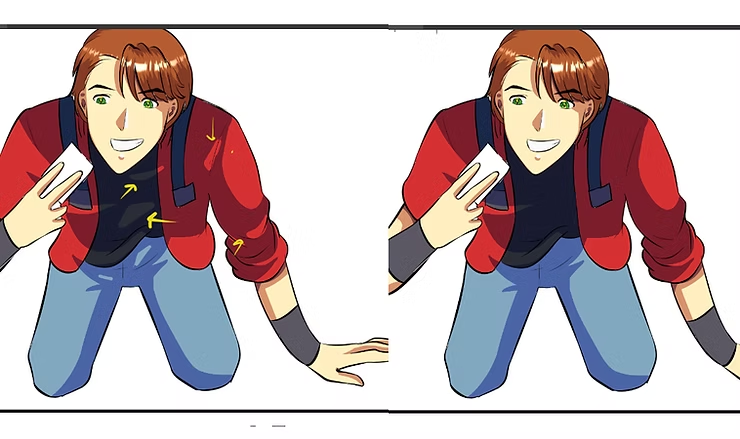
Just look at the picture below, especially the yellow arrows, through which I show you the shadow locations, which is what the webtoon shading lesson was all about.
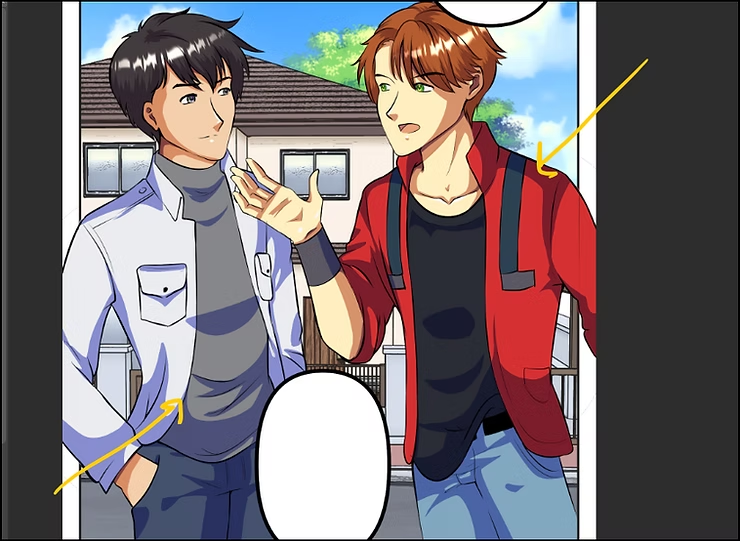
These were the steps for the webtoon shading lesson. Apply them as I've outlined them here. I hope you achieve satisfactory results when shading your webtoons, because I know from my experience creating some webtoon chapters that shading can make a significant difference. Sometimes I even rely on it more than drawing itself; I mean, I draw in a simplified way and leave the rest to the shading. Now, I leave you in God's care.