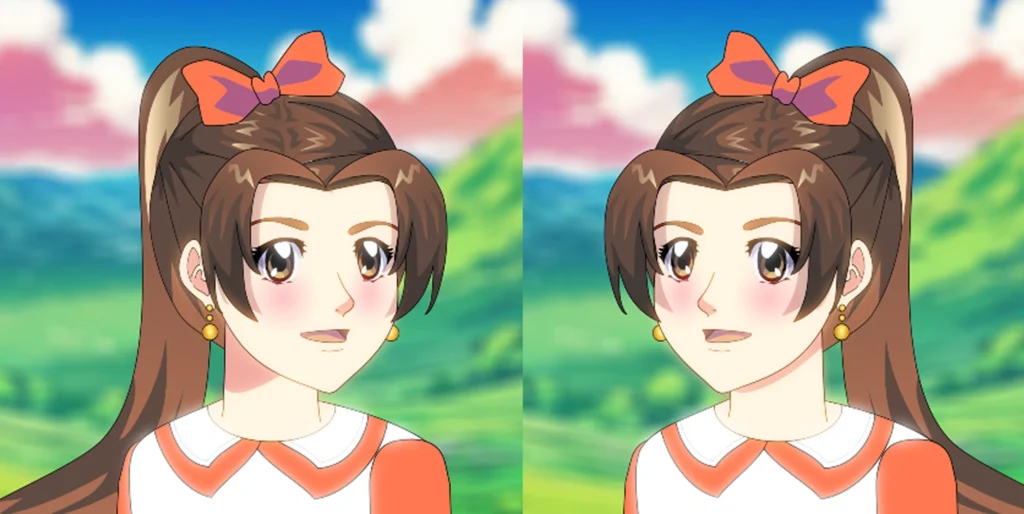
Welcome, friends, to a new animation lesson: animating a face as it turns from side to side. The method will be very easy, and we won't need to draw frames manually. However, before we begin, it's essential that we have drawn and layered the character using a rig, which I've explained in several previous lessons.
Now prepare the program Toon Boom Harmony On your computer, so you can follow along with me step by step. If you'd rather avoid designing an anime character from scratch, you can download my ready-made characters from [link/source]. here.
My Patreon account where you can find a detailed screenshot of the animation
First step
We open the program, go to the library where the character is located, and immediately drag it to the workspace.
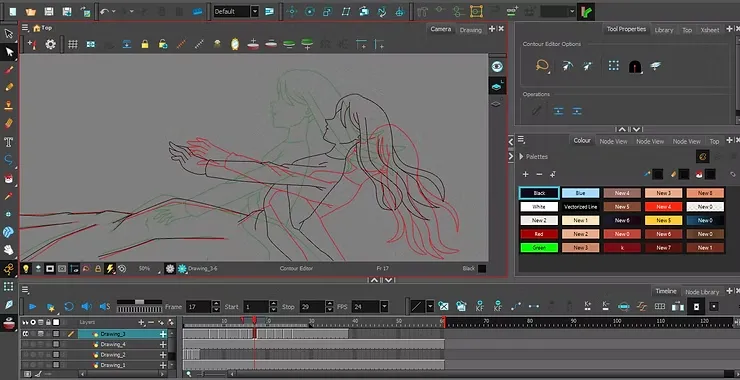
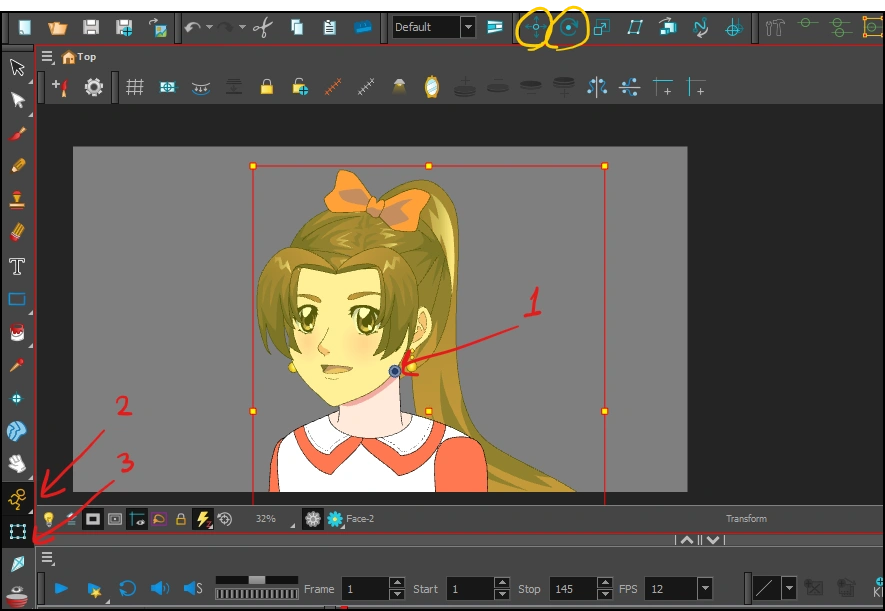
We select the entire face by pressing on a letter B On the keyboard, we make sure the focal point is located below the edge of the face. I've highlighted the two tools we can use to locate the focal point in the image via the yellow circle.
- We activate the movement tool feature.
- We select a tool Transform Tool.
Step two
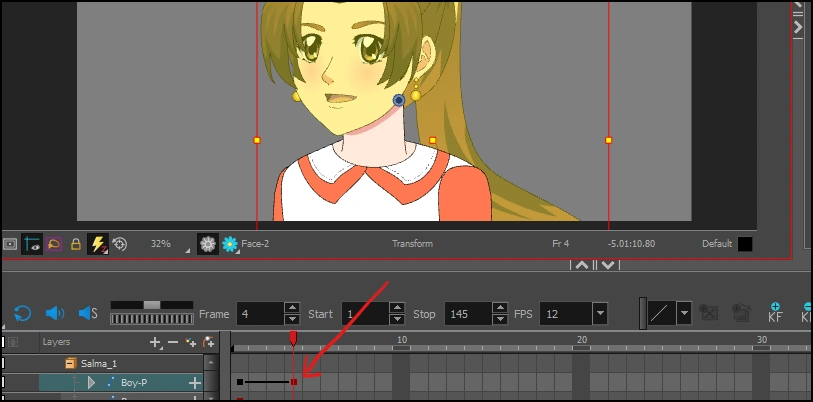
- We add a keyframe or Key Frame At the beginning of the timeline.
- We move to frame number 4 and add Key Frame last.
Step three
You can see here that the head has come out of its place, and solving this problem is very easy, and the method will be as follows:
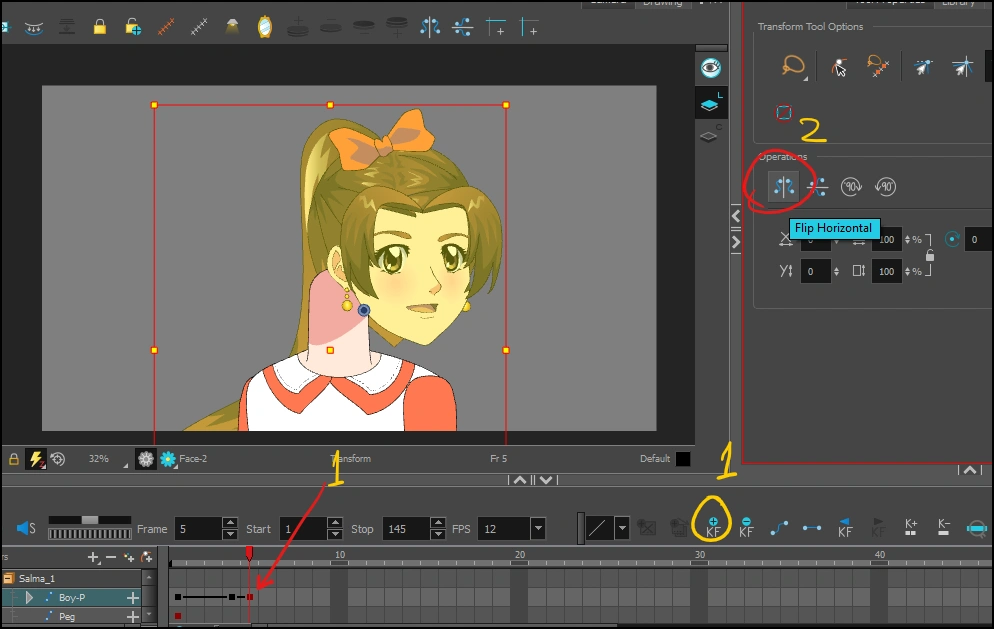
- We add Key Frame Another one in frame number 5.
- via tool Transform Tool We flip the face; the option to flip the face is located in the right-hand menu. Flip HorizontalI have marked it for you with the red circle.
Step four
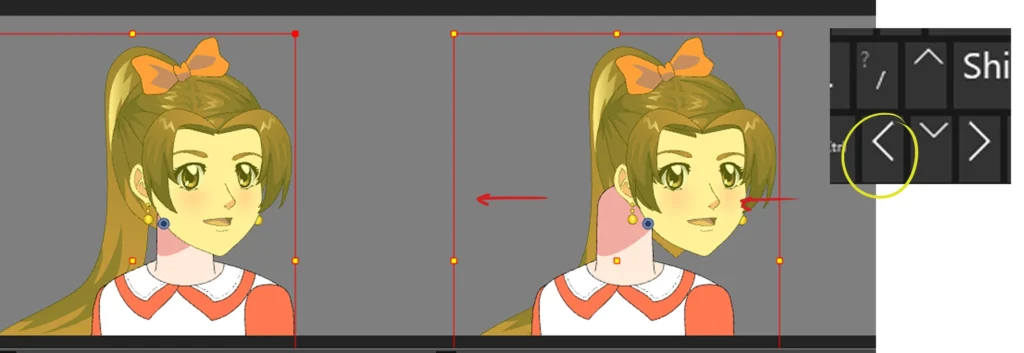
We now pull the face towards its correct position, and the method is as follows:
- We continue to define the face layer.
- And with a tool Transform Tool We pull it manually towards the neck, or you can press the arrow keys on the keyboard.
Step five
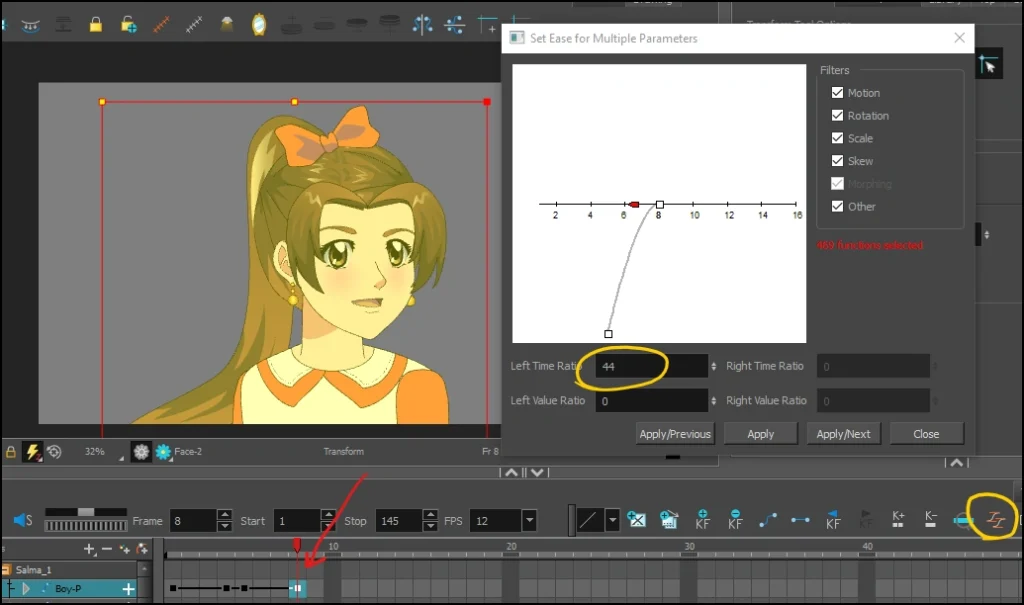
At this stage, we will add acceleration or deceleration in order to achieve smooth and gentle facial movement:
- We add Key Frame New in frame number 8.
- We select the acceleration tool Ease Tool.
- In the box Left Time Ratio We choose any number between 44 and 55 to get a smooth acceleration of motion.
- Then we press the button Apply.
Explanatory video
This is a short video in which I show you how the previous stages were carried out, and the result we reached.
Step six
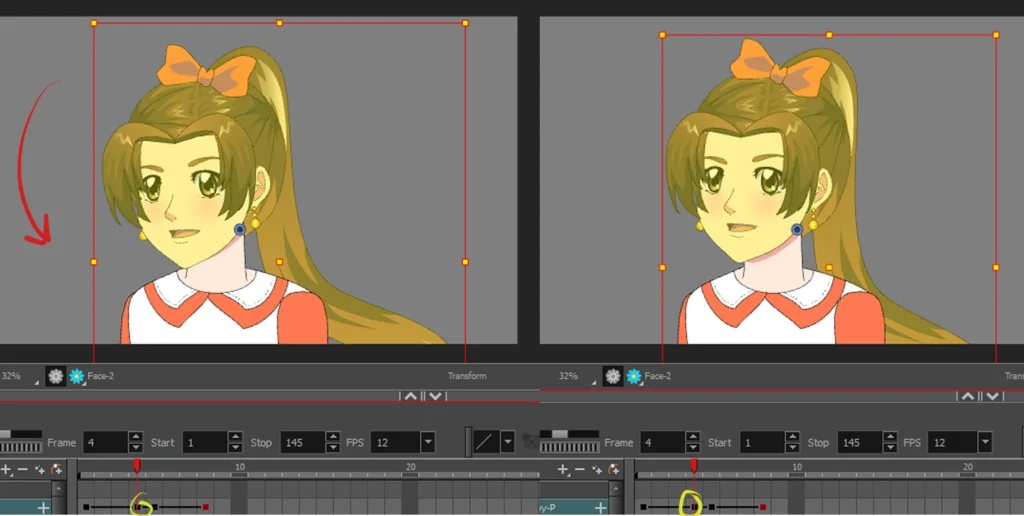
At this stage, we will add a few touches to achieve greater smoothness:
- We go to frame number 4.
- With a tool Transform Tool We bend the face slightly downwards.
Step seven
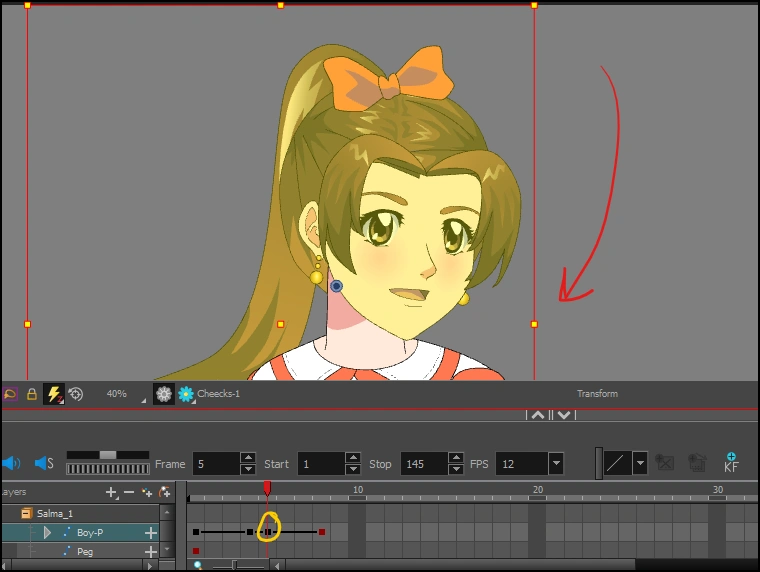
- We move on to frame number 5.
- With a tool Transform Tool We bend the face downwards slightly, as we did in frame number 4.
Explanatory video
Notice with me in this clip how the result has changed compared to the previous stage, where there is a slight curve of the face before it moves to the other side.
Step eight
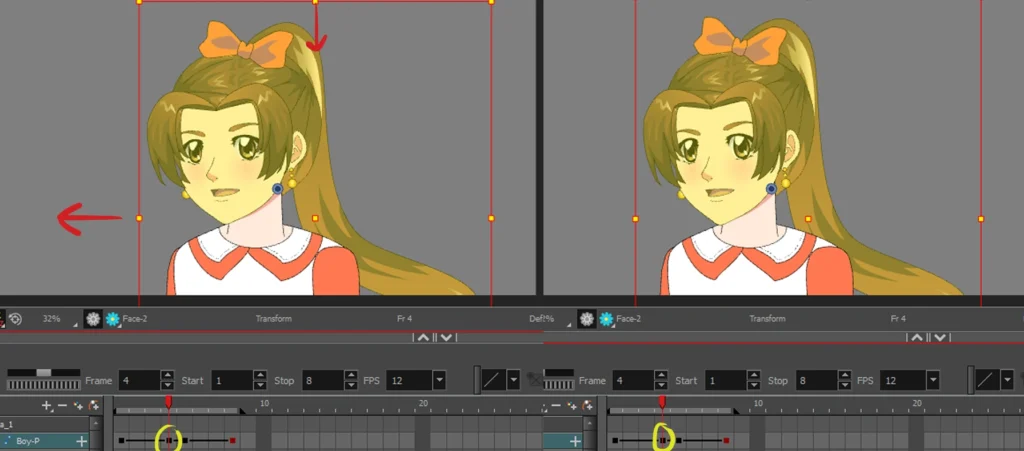
After we have finished the basic animation, we will add a light animation to further improve the movement.
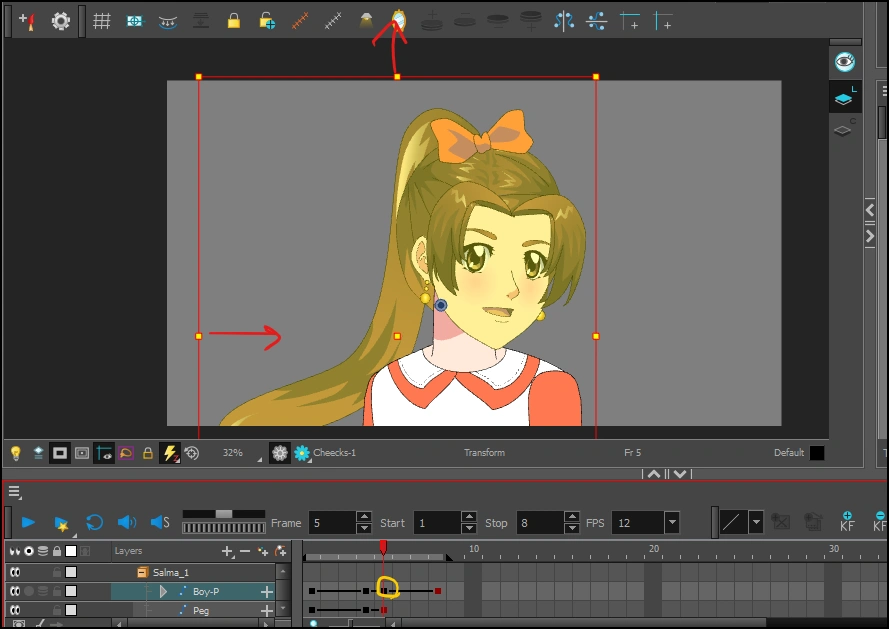
- We move on to frame number 4.
- We remain a tool Transform Tool.
- Pull the face inwards, and to the left as well.
Step nine
- We go to frame number 5.
- Pull the face upwards, and also inwards.
Step ten
This is an optional step, you can skip it, but I recommend it if you want to improve facial movement:
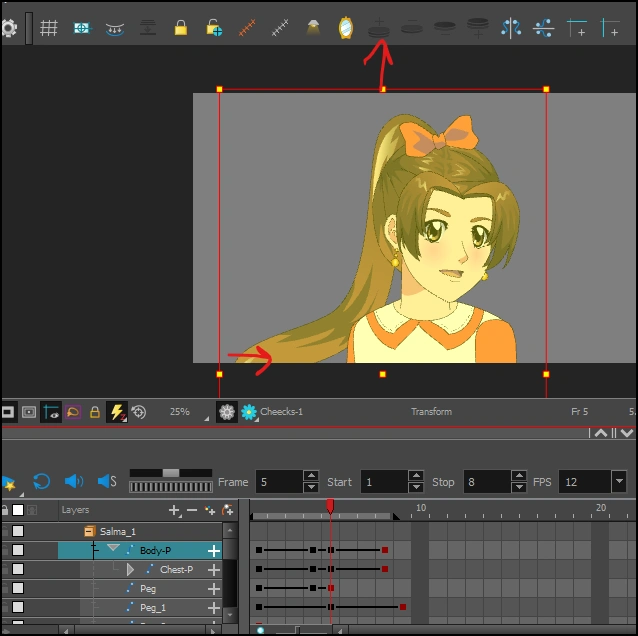
- Now we will define the character's entire body.
- Using the same tool, pull the body upwards and inwards.
Learn animation with two drawings using the Motion Twin technique for two-way animation.
Final result
This is the final result. Watch the video to see how the face moves and turns beautifully and smoothly from left to right, and don't forget to add a beautiful anime background, whether it's a landscape or a cityscape.
And so today’s lesson ends, and it is one of the most important lessons, so you must learn to move the face of an anime character from one side to the other, because you will use this movement a lot in the anime and cartoon works you are working on.
Apply all the steps as outlined in the lesson. This method is effective even with animation apps on Android and iPhone devices, and it's much easier than animating the face using a different technique. Frame by Frame Traditional.
Thank you for following today's animation lesson, and I will meet you in future explanations, God willing.