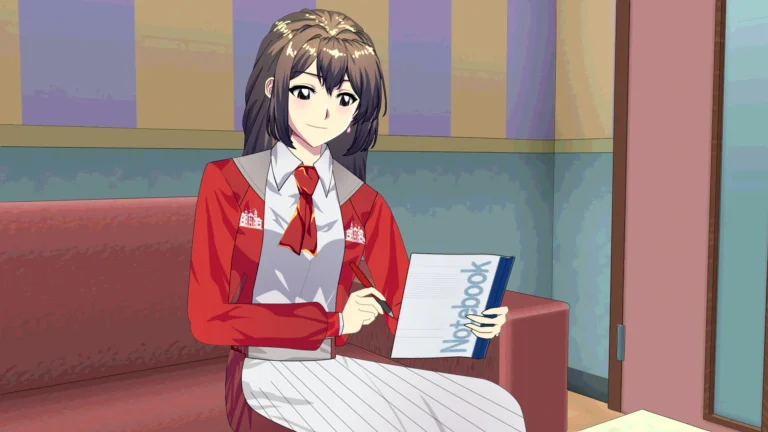
Welcome to a new and exciting After Effects tutorial where we'll learn how to design action backgrounds for thrilling anime scenes. These backgrounds aren't just ordinary images; they're crucial for enhancing the speed and impact of action scenes. Without them, the footage might appear less impactful and lack emotional depth. So, let's begin learning how to design them from scratch, step by step.
Effects, action lines, and backgrounds for anime scenes
Setting up the project and configuring layers using After Effects
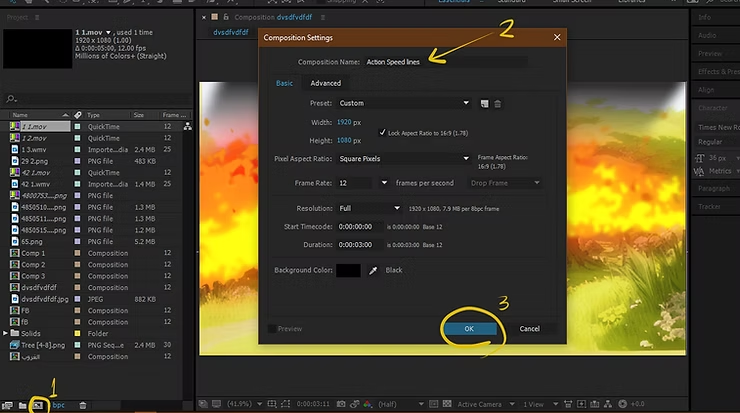
- To open a new project: We start by opening Adobe After Effects, then from the side menu File → New → New Composition (File → New → New Composition).
- A window will appear Composition Settings (Composition settings), where we can change the name to “Fast Lines” or any other name.
- We press OK (OK) to continue.
Creating the basic background
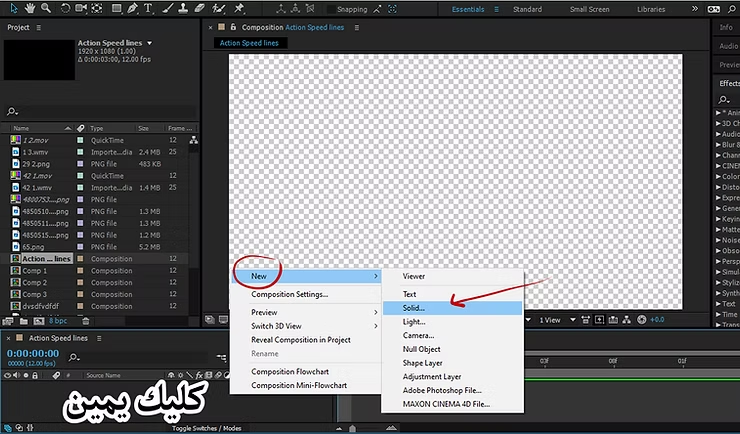
In the Timeline window, right-click → New → Solid.
A blank page with no background will appear while we are working on the action backgrounds. We right-click on the left menu and select New → Solid.
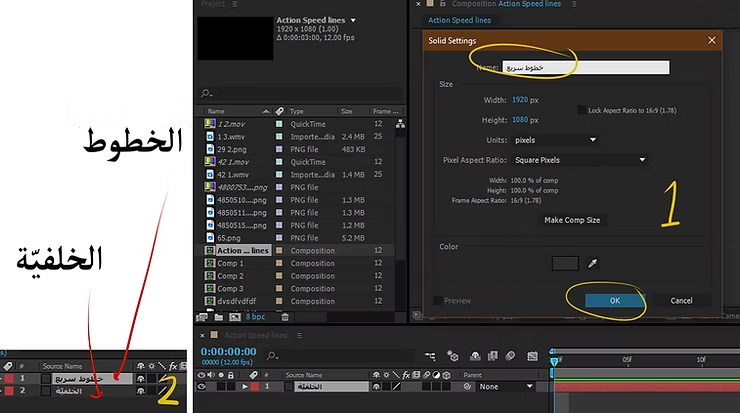
We will add two layers: one for a white background, then press OK (OK), and we repeat the process to add another layer that will be for the lines, so that we have two layers: one for the background (at the bottom) and one for the lines (at the top).
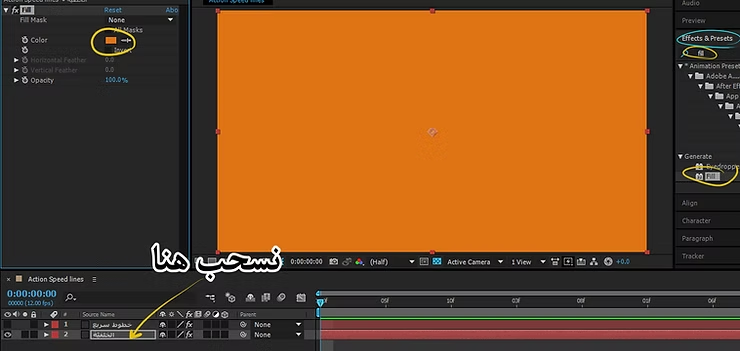
Background coloring and effects added to the Action Backgrounds project
- Open the Effects & Presets Panel from the right-hand menu.
- In the search box, we type Fill, then drag the effect towards the background layer.
- From the Effect Controls Panel, we select the orange background color as the primary color.
Creating a highway effect
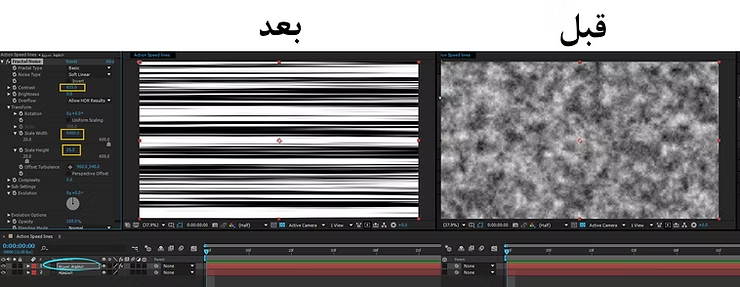
- We go back to the effects section and look for Fractal Noise, then drag it to the lines layer.
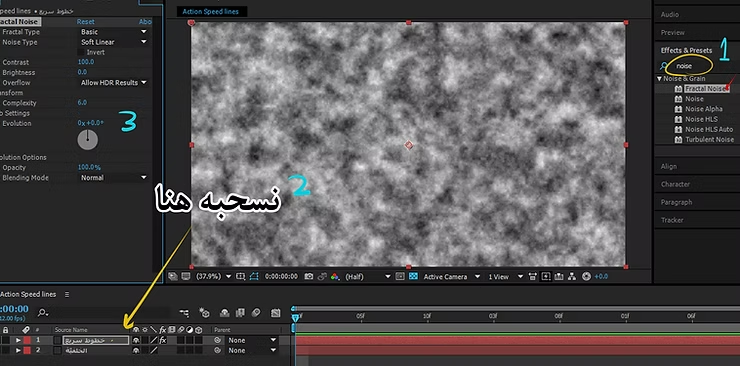
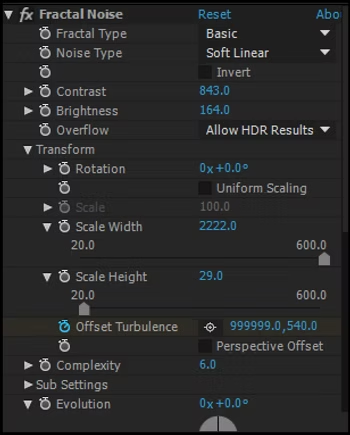
In the impact options, we set the following values:
- Here's Contrast: 843
- Here's the brightness: 164
- Here is the Scale Width: 2222
- Here is the Scale Height: 29
This is a close-up of the options in the Action Anime Backgrounds project.
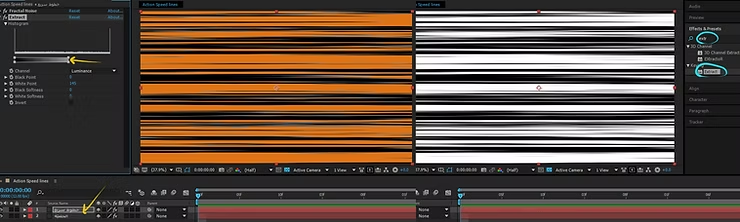
Color extraction
We add the Extract effect to the same layer, then drag the Threshold bar from right to left to get rid of the white background and keep only the black lines.
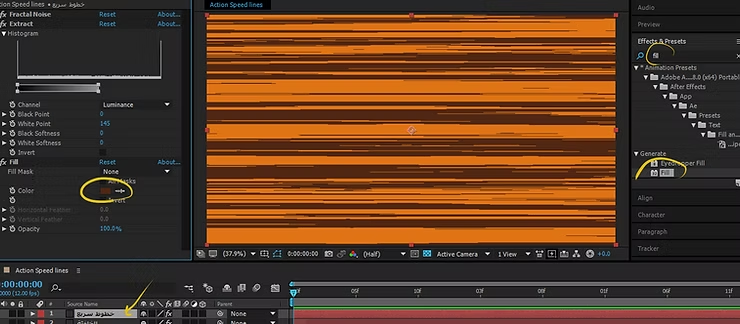
Packaging
We look for Fill again, drag the effect to the lines layer, and then change the color from black to brown.
Moving lines quickly in the scene
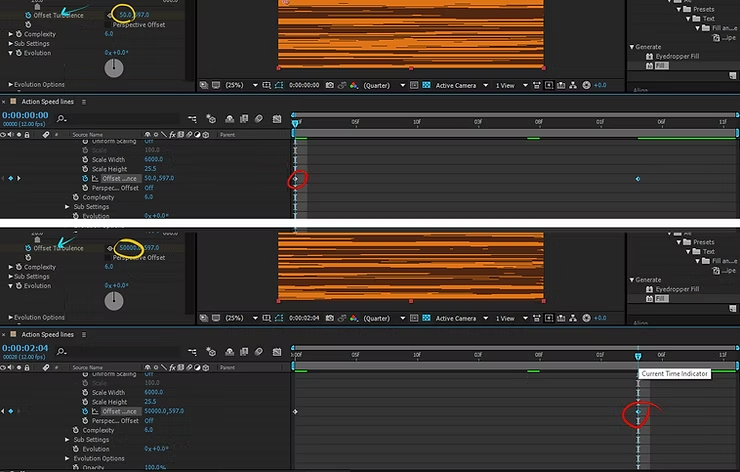
- We go to the lines layer, add Keyframe to the Offset Turbulence option at the first frame, and set the value 50.
- We move on to the framework 50 We add a new Keyframe, then set the Offset Turbulence value to 50000.
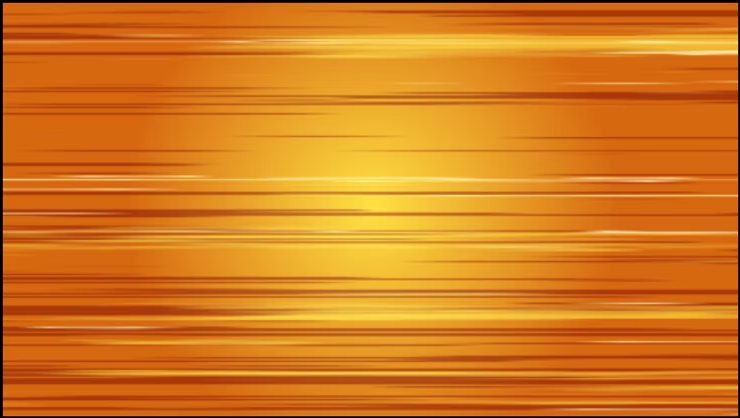
Now, the lines will move quickly from left to right, becoming like the action lines that appear in anime.
Explanatory video
This is how the action backgrounds and lines will move quickly from left to right.
Adding shiny lines
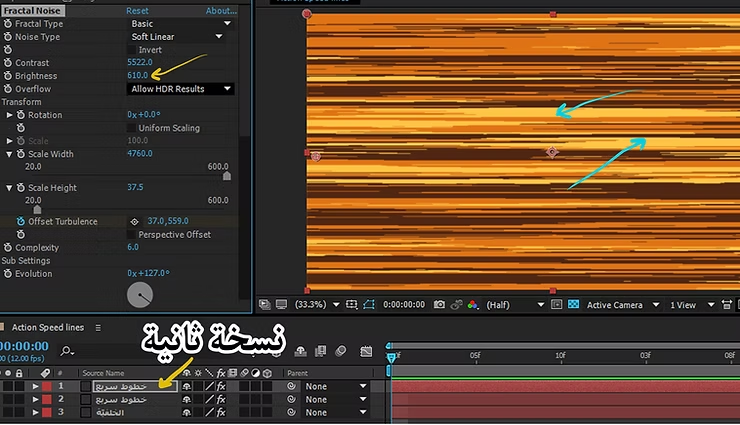
- We copy the font layer by pressing Ctrl + D or by right-clicking and selecting Duplicate.
- We change the color of the new layer to yellow or light orange using the Fill effect.
- We can adjust the speed of the lines by modifying the Offset Turbulence values.
Repeating the command
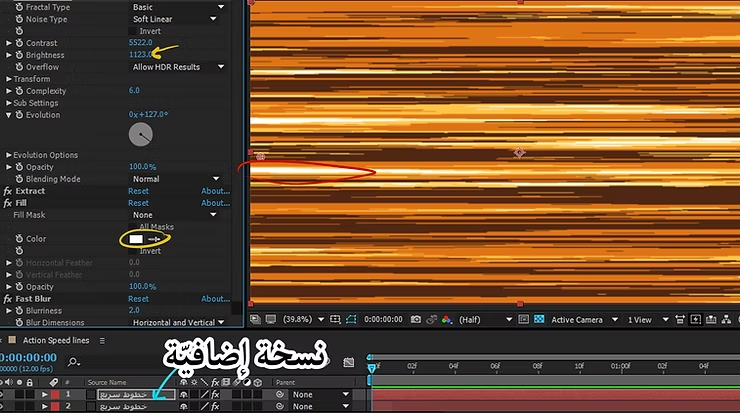
- We repeat the same process to create a third layer, but this time in white.
- We adjust the thickness of the lines by controlling the contrast and brightness.
- We add a Glow effect (lighting) from the effects box to the white layer, then adjust the intensity of the light as needed.
Exporting the final action backgrounds
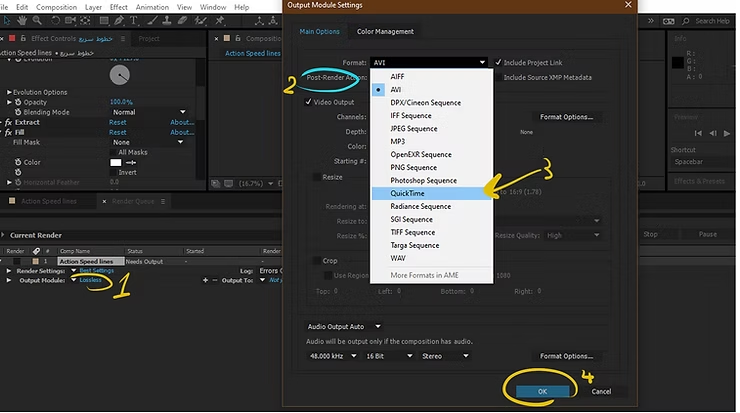
After designing the background, we need to export the file in high quality. Follow these steps:
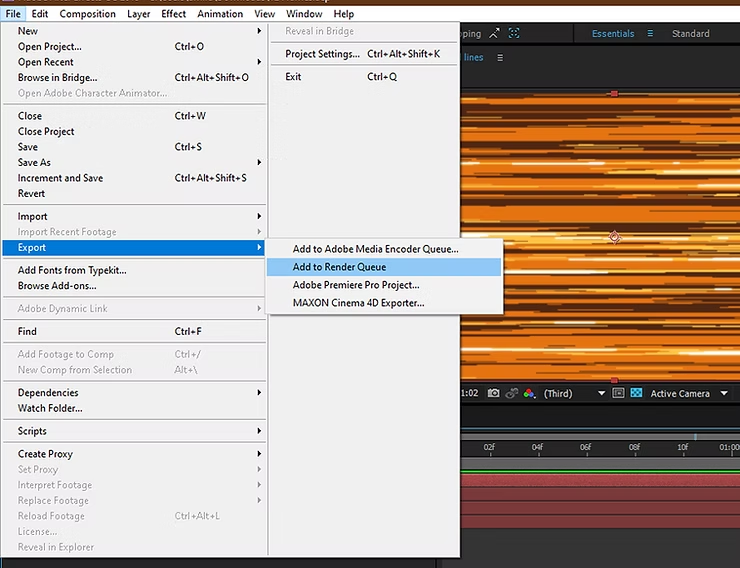
- We press File → Export → Add to Render Queue.
- In the Render Queue window, we adjust the settings: In Format: we choose QuickTime or MP4 (H.264) to get a suitable size.
- In the Output Module: we click on it and select RGB + Alpha if we want a transparent background.
- In Output To: we specify where to save the file.
- We press Render and wait until the export is complete.
Final video
My online store has everything you need as artists
Now that we've created professional action backgrounds for anime scenes, we can easily integrate them into our projects and add more effects to make them even more appealing. These backgrounds add excitement and thrill to fight scenes or surprise moments.
Follow these steps exactly, so you can create your own anime wallpapers, or you can save yourselves the effort and time and acquire several types and styles of action wallpapers that I designed specifically for anime and cartoons:
Download from Here
Thank you, and I will see you soon, God willing.