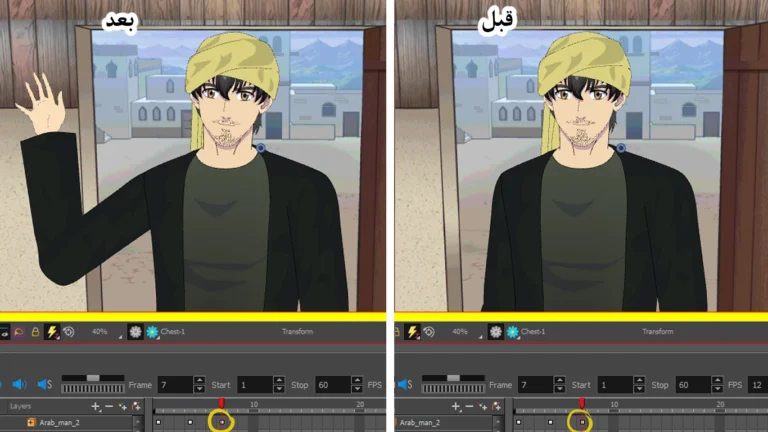
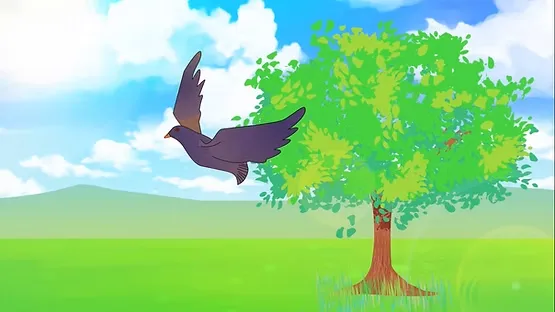
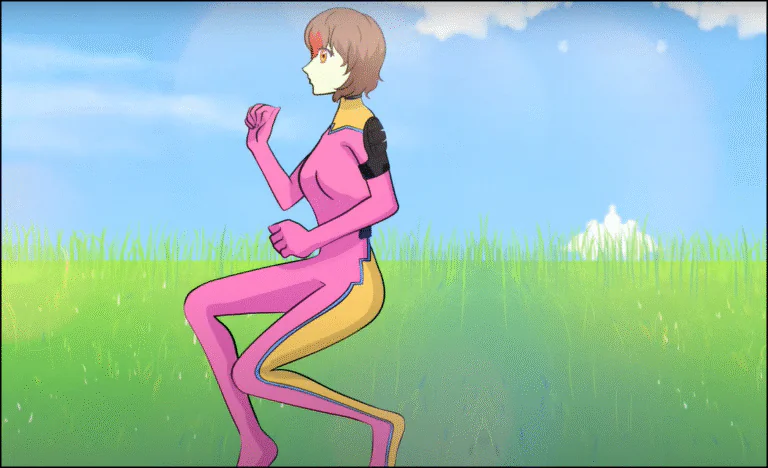
Today we will learn together, step by step, how to zoom in and out of scenes and shots using the Ton Boom camera, via the Zoom In feature.Zoom InZoom OutZoom OutThis is a skill needed by anyone working on the professional design of an anime film. It's essential for you to control camera movement within a scene, making the audience feel the natural action and as if they are experiencing it alongside the characters.
My online store has everything you need as artists
The method we'll be using is incredibly easy and will only take a few minutes to master, but it opens up a wide range of possibilities for manipulating scenes and controlling the focus on details or wide shots. We'll be using just one tool within the anime editing software. Get ready to try these steps yourself so you can master professional camera use in your upcoming projects.
The tool we will be using today is the Ton Boom camera, which is a tool designed to zoom in and out of scenes and control the frame. The camera can also track the character while moving, and move the viewing angle left and right as needed.
First step
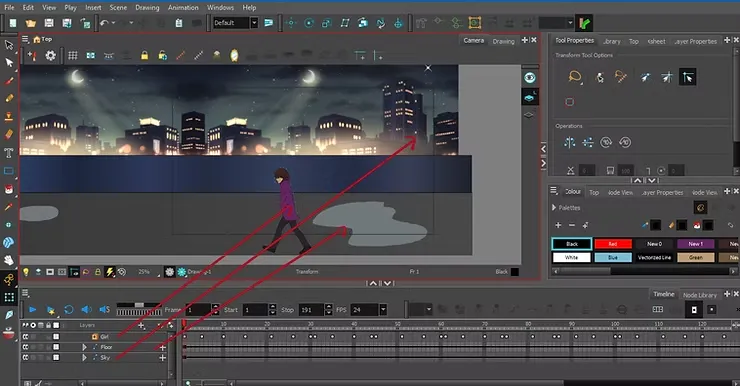
Before using the Toon Boom camera, it is essential to prepare the scene in advance, so that the character appears clearly within the frame, with backgrounds and ground elements set up in separate layers, as we indicated in previous lessons.
- The sky is in the background.
- The floor is in the middle.
- The girl is in a separate layer at the front.
Step two
Now we will add the camera tool, which we will use to perform time-lapse later.
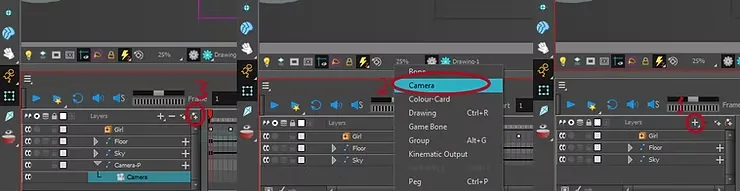
- From the top menu bar, go to Insert > Camera Or press the button Add Camera From the toolbar (camera icon).
- A new camera layer will be added automatically in the Timeline.
- You should add “big”.” Peg For the camera, otherwise we will not be able to move it.
Step three
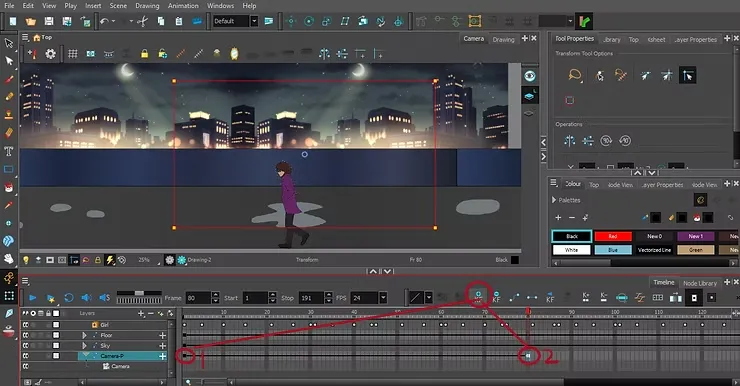
The next step in the lesson is to add keyframes (Key FramesTo do this, go to the bar at the top of the timeline, and add a keyframe at the beginning of the scene and another at the point where you want the camera movement to end, whether you zoom in or out of the scene.
Always make sure you are in the camera's "big" layer when adding keyframes inside the Toon Boom camera so that the work does not get mixed up with other layers.
Step four
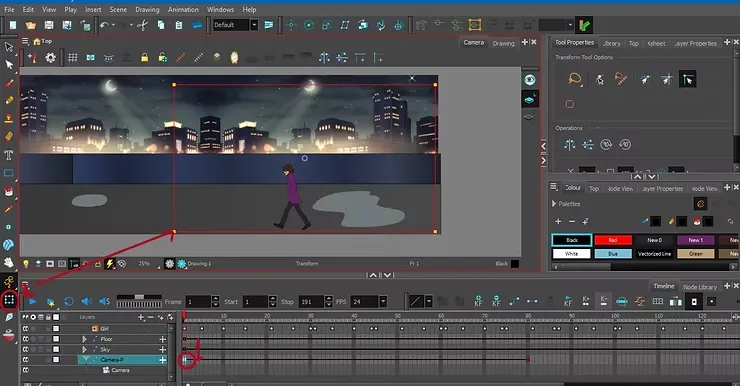
Now it's time to zoom using the Toon Boom camera; you need to press the tool. Transform Tool We previously learned how to use this tool to move characters and elements within the scene. After selecting this tool, go to the edges of the frame surrounding the scene, and press or drag inwards to zoom in.
How to add sunlight to an anime scene in one way
Step five
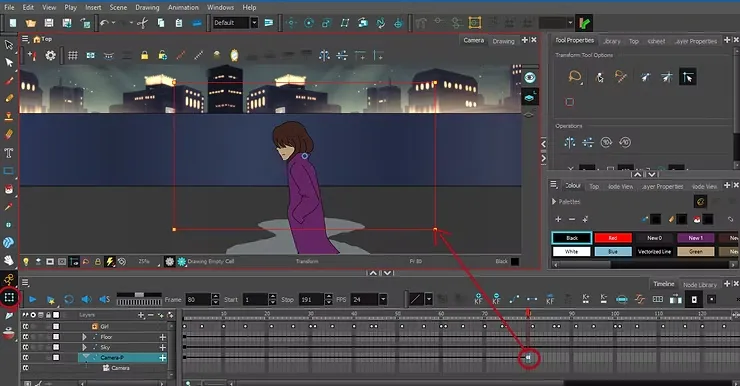
You can then pull the ends outwards to execute Zoom Out (Zoom in) If you want to widen the viewing angle, or pull it inwards to perform Zoom In (enlarge the scene) when you need to focus on a specific character or element in the scene.
This method makes zoom control using the Tone Boom camera smooth and precise, and adds natural movement to the scene. The closer the keyframes are, the faster the movement, and vice versa.
Final scene: https://youtu.be/qxwDZg4GpuE
After completing the previous steps using the camera, you will notice that the final result appears clearly as the camera gradually approaches or moves away from the character, adding something that gives the scene realism and attracts the viewer.
Optional step
After completing the movement, add speed or slowdown to the animation, like this:
- Add Keyframes Using F6Move the element with a tool Transform Tool.
- Open the motion editor (Function Editor)
- Right-click on the layer > Edit Function Choose the type of movement (Position / Scale / Rotation).
- Adjust the curve
Pull handles Bezier To smooth the movement:
- Ease In Slow start
- Ease Out Slow ending
- Use the pre-defined values (Tool Properties)
- They selected the keyframe and chose the type of Ease One of the characteristics.
This way you will be able to move and control the scenes as you wish within the animation project, using the zoom tool to get professional results in record time.
And with this we have finished the lesson on moving the camera in Toon Boom Harmony and adding zoom in to it, without complications or wasting time. Thank you and I will see you soon, God willing.